Getting started
Getting around
A tour of The Terminal's workspace: the parts of the window, how to open a panel, and how to arrange, tab, group, link, and save everything once it is open.
The Terminal is a workspace, not a single screen. You open the panels you need, arrange them the way you think, and save that arrangement so it comes back next time. This guide is the tour: the parts of the window, the two ways to open a panel, and how to arrange, tab, group, and link everything once it is open. Learn these few moves and the rest of the app is just panels inside this same frame.
The window
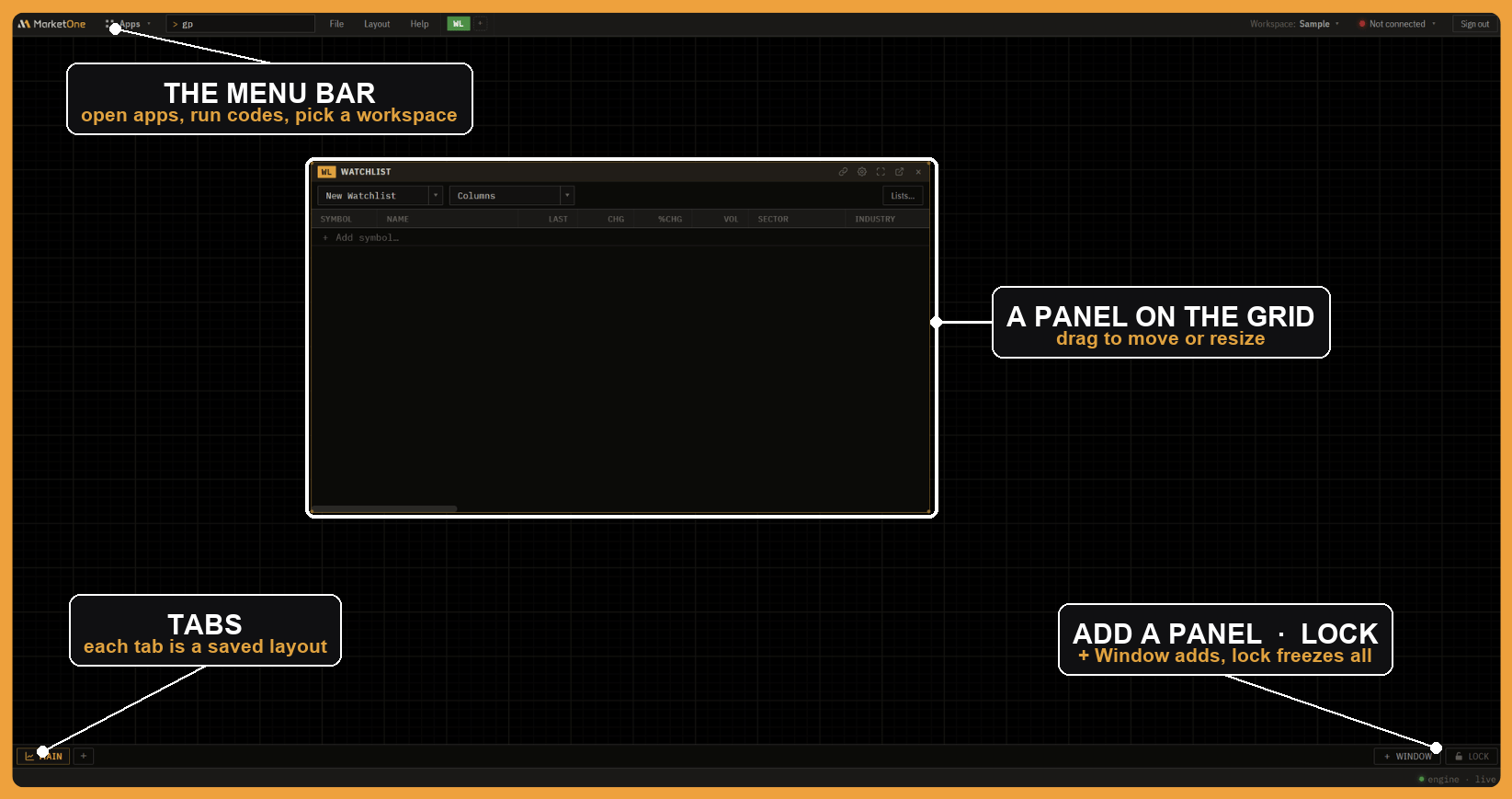
Every panel lives inside one window, and that window has four parts:
- The menu bar along the top. On the left are your two ways to open a panel, the Apps launcher and the command bar. On the right are your workspace, your connection status, and sign-out.
- The grid in the middle, where panels sit as tiles you can move and resize.
- The tabs at the bottom-left. Each tab is a saved layout, and you switch between them like browser tabs.
- The window controls at the bottom-right: + Window to add a panel, and the lock that freezes the whole layout.
That is the entire frame. Everything else is a panel inside it.
Starting from an empty tab
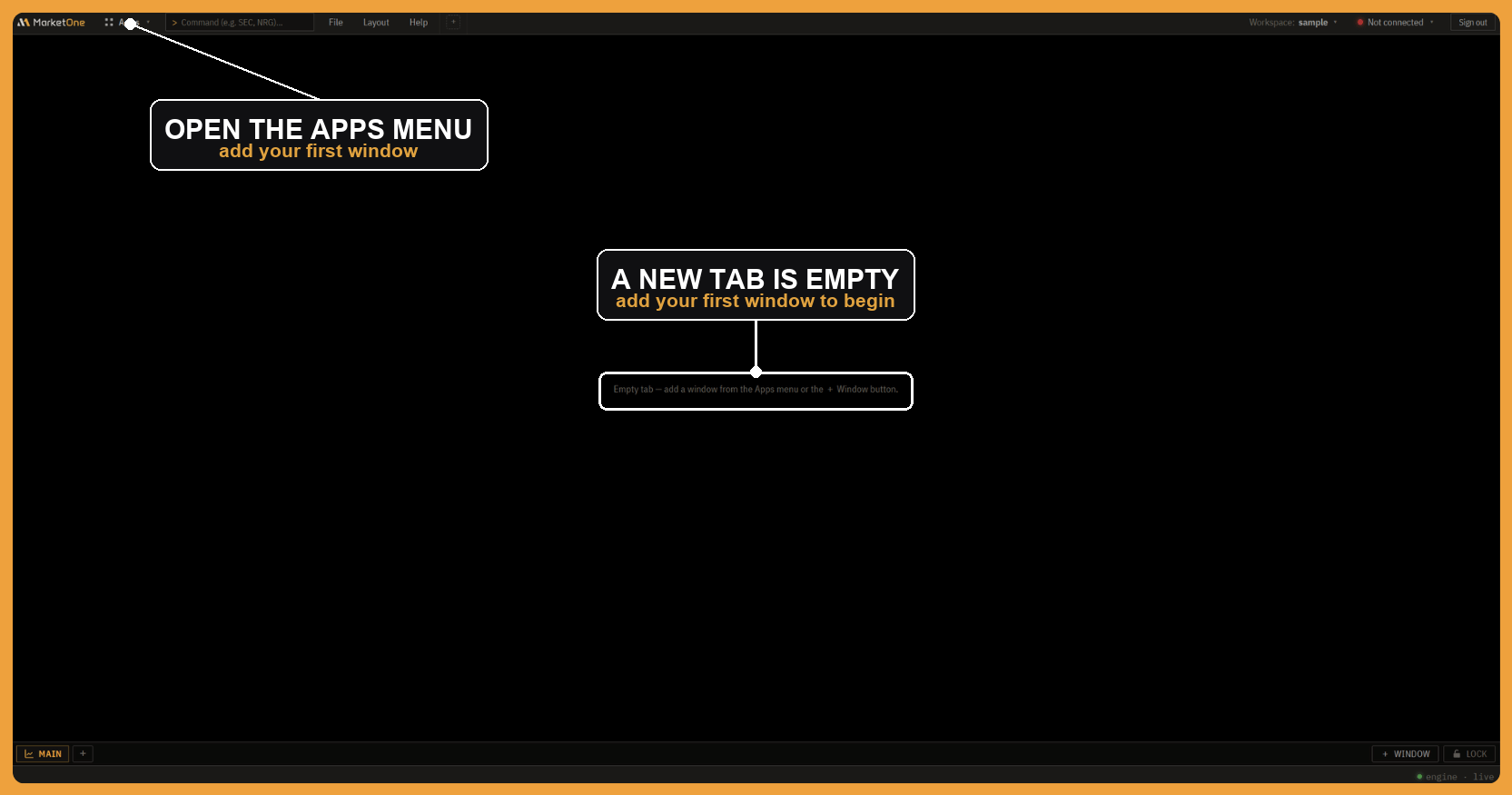
A brand-new tab is blank on purpose. The hint in the middle tells you how to fill it: open the Apps menu in the top-left and pick a panel, or type its code in the command bar. Either one drops a window onto the grid, and you keep adding panels until the tab holds the view you want, then save it as a tab (below) so it comes back.
Opening a panel
There are two ways to open a panel, and they reach the same place. The fast way is the command bar at the top: type a panel's function code and press Enter.
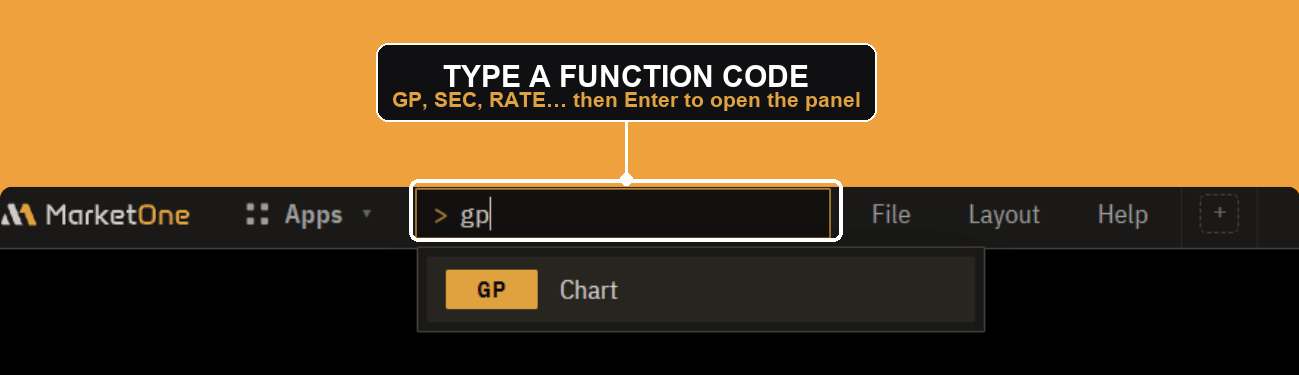
As you type, it suggests the match (typing gp offers GP Chart). Codes are how you move quickly once you know a few: RATE for rates, SEC for sector analysis, and so on. The command bar takes codes, not ticker symbols. To change what a panel is showing, you type the symbol inside the panel itself.
When you do not know the code, open the Apps launcher instead.
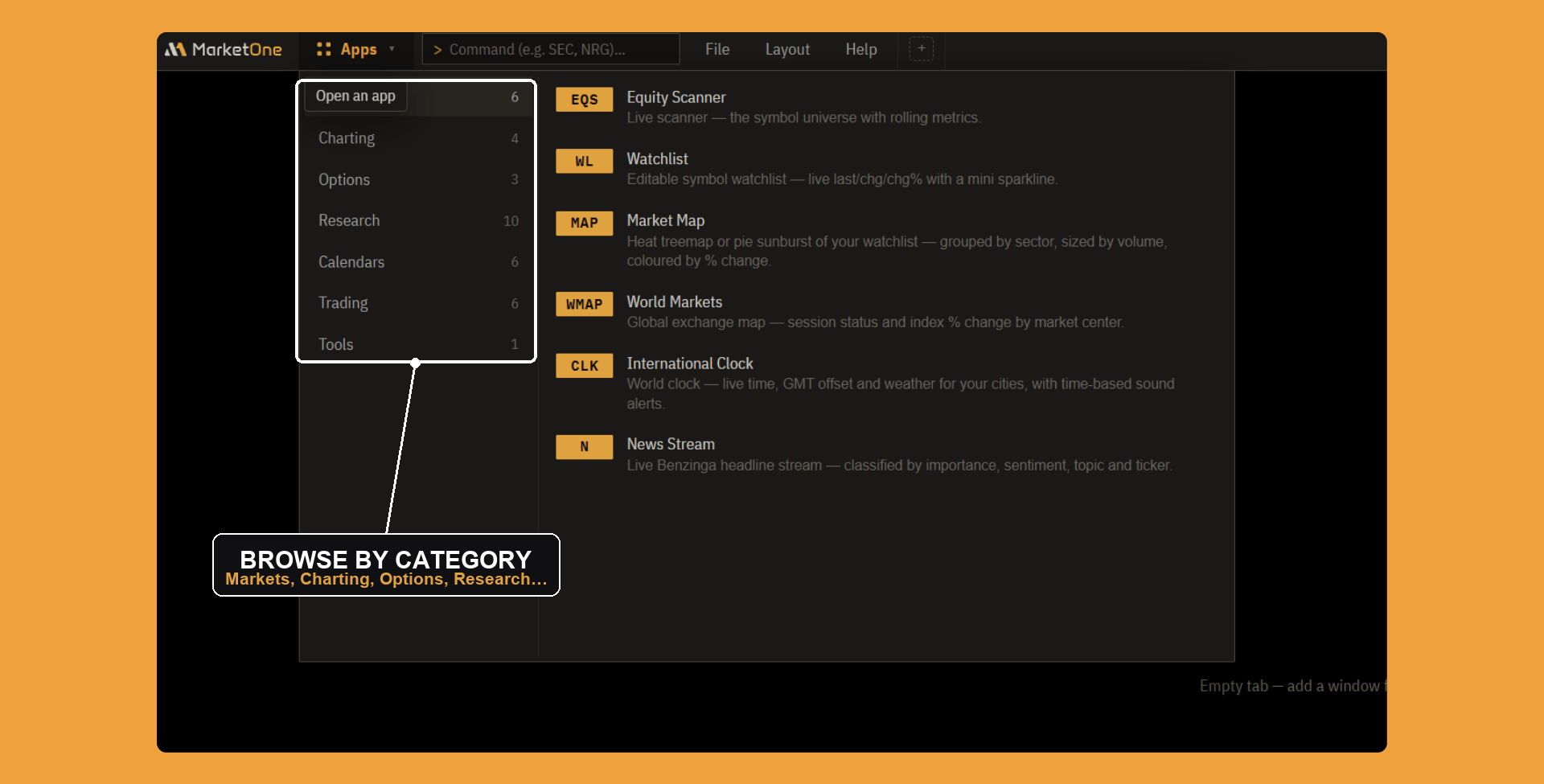
It lists every panel grouped by category, Markets, Charting, Options, Research, Calendars, Trading, and Tools, so you can browse to the one you want and click it. Each row shows the panel's code too, so the launcher is also how you learn the codes for next time.
Arranging the layout
By default the grid is locked, so panels hold their place and your clicks go to the panels rather than to moving them. The lock lives in the bottom-right of the window. Unlock it and every panel becomes a tile you can drag to a new spot and resize from its edges; lock it again to freeze the arrangement. Size the panels you watch most and tuck the rest into a corner.
Note: The lock is for the whole window, so one switch frees or fixes every panel at once. Each window keeps its own arrangement, so a second window can look completely different.
Tabs
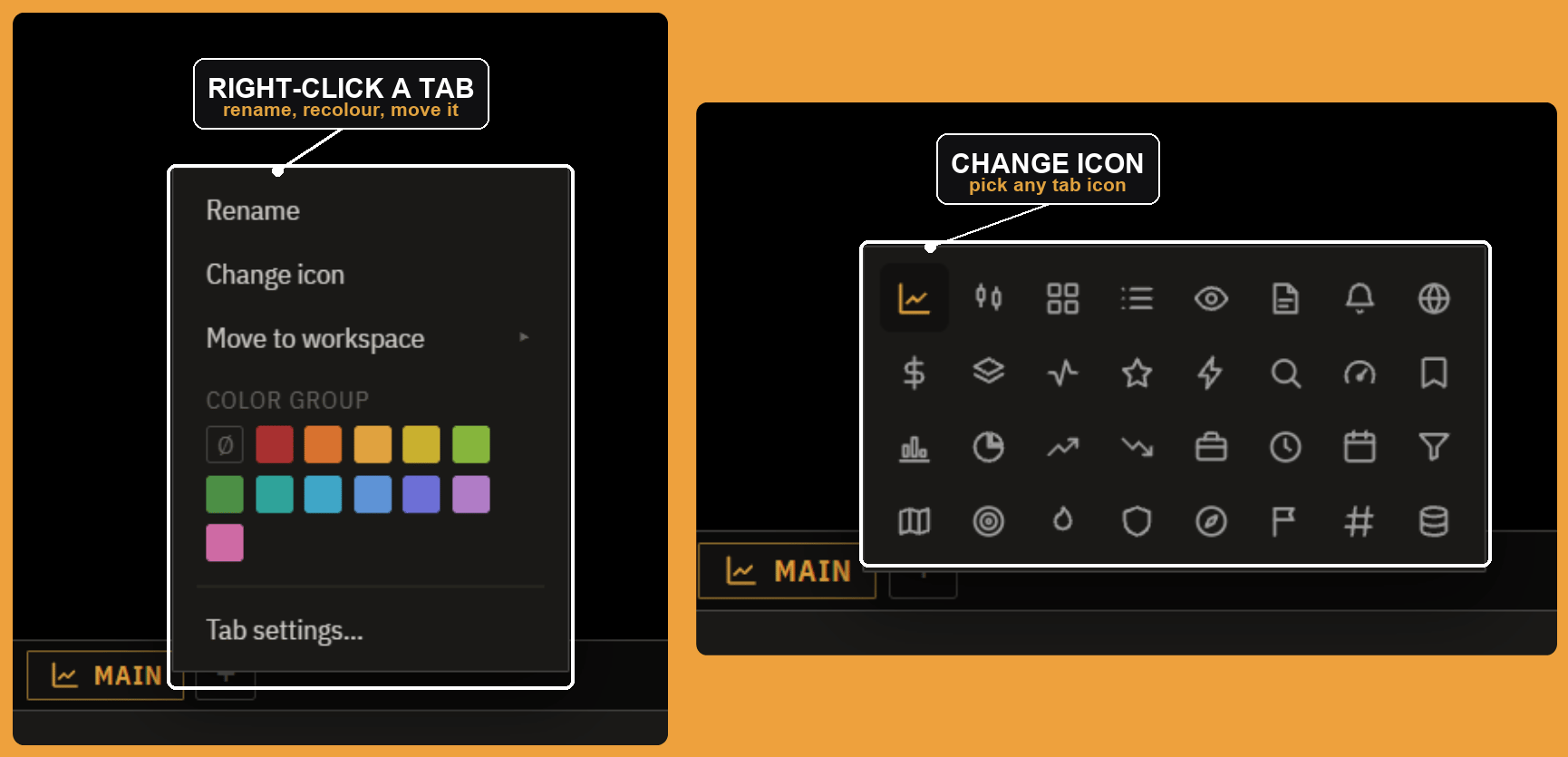
Each tab along the bottom is a saved layout, a full arrangement of panels you can switch between. Right-click a tab to rename it, change its icon, move it to another workspace, set its color group (for linking, below), or open Tab settings. The + next to the tabs adds a new, empty one. Build a tab for each job: one for the open, one for a name you are researching, one for the close.
Workspaces
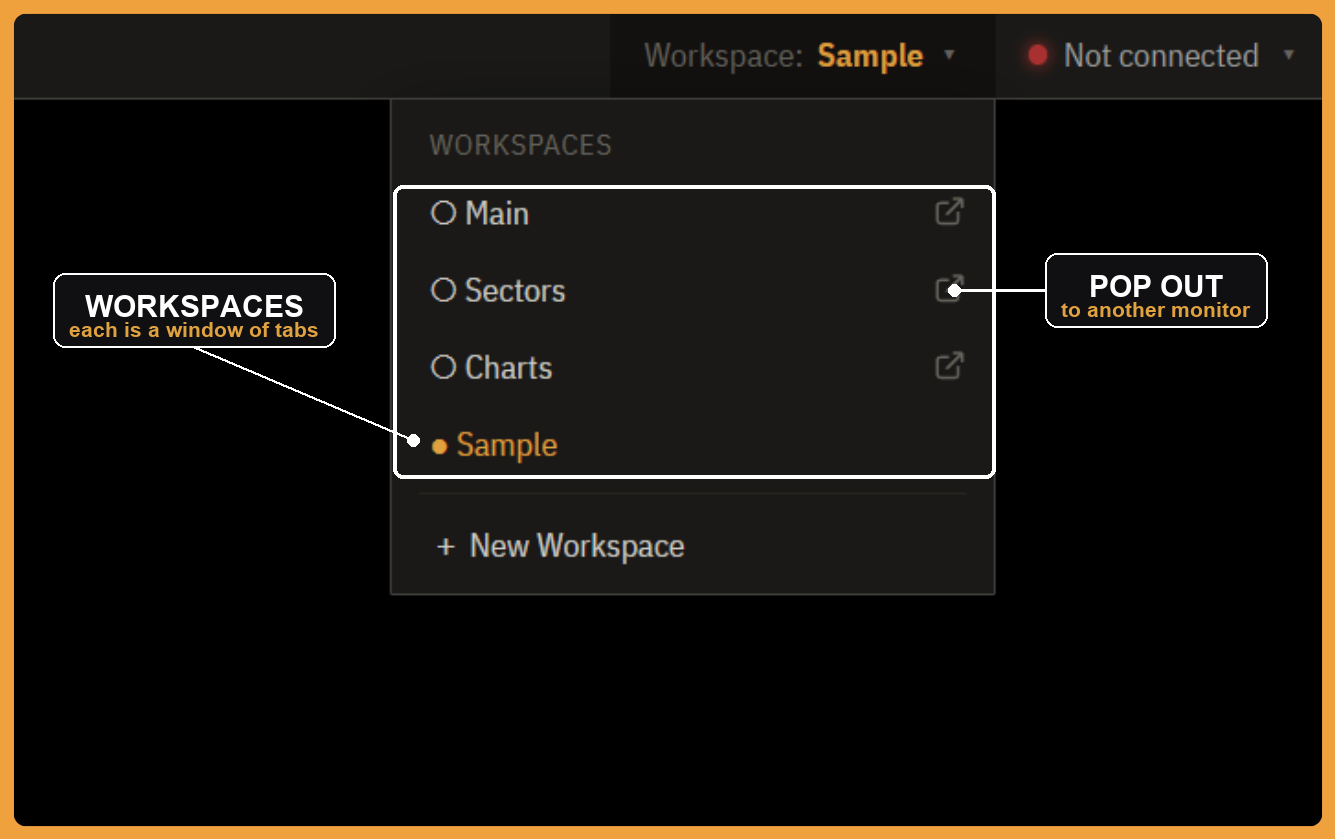
A workspace is a window full of tabs, and you can have several. The workspace menu is at the top-right of the menu bar, and the dot marks the one you are in. Switching workspaces swaps the whole set of tabs, so you might keep a Main workspace for daily work and a separate one for a deep dive. The small pop-out icon next to a workspace opens it in its own window, which is how you put one workspace on a second monitor and keep another on your main screen. + New Workspace starts a fresh one.
Favorites
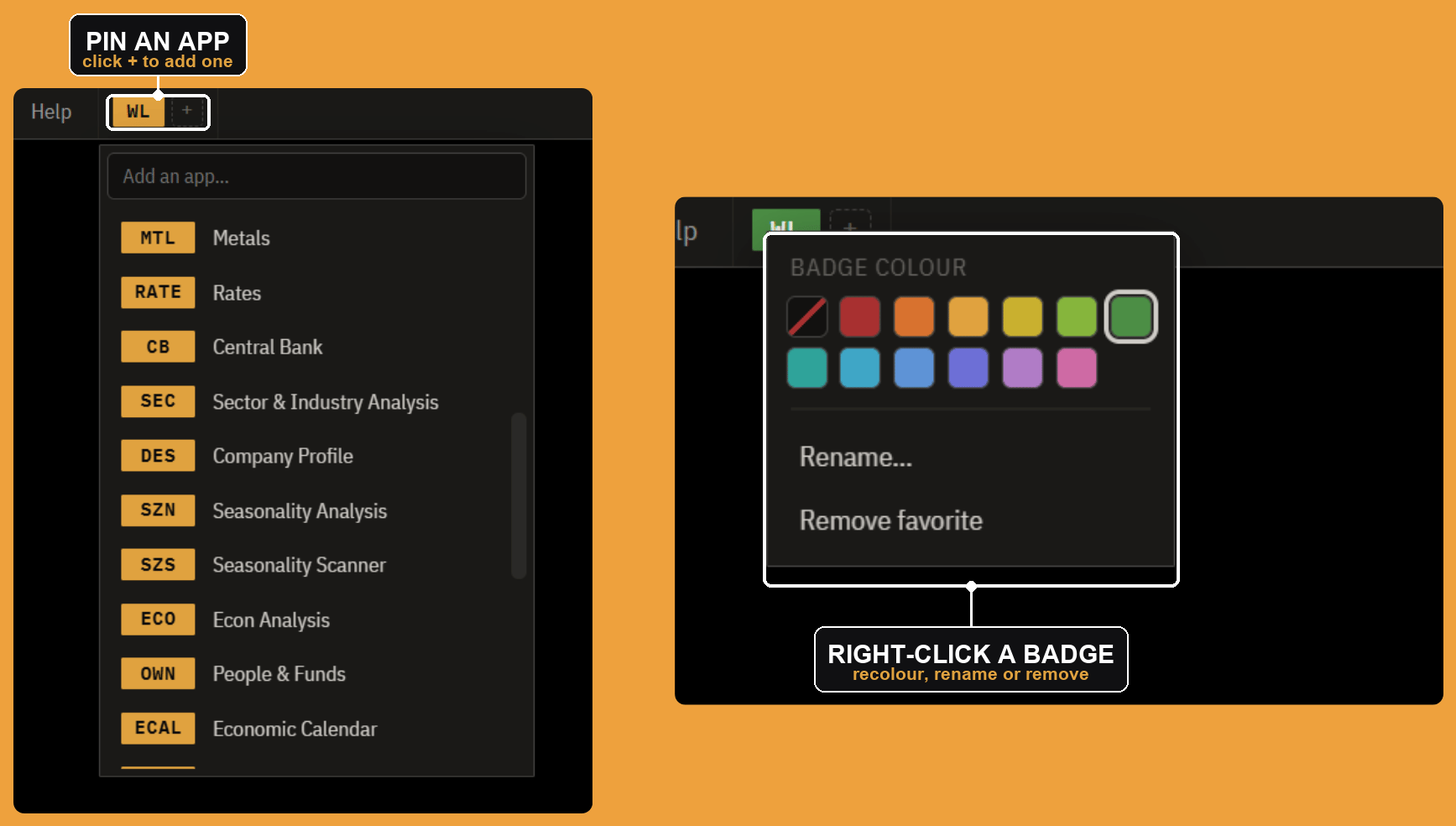
The small colored badges in the menu bar are your favorites: one-click shortcuts to the panels you open most. Click the + to open the picker, start typing to find an app, and click it to pin it as a badge. Right-click a badge to recolor it (so your most-used panels are easy to spot), rename it, or remove it. Favorites are the shortcut layer on top of codes and the launcher: the handful of panels you want one click away.
Connections
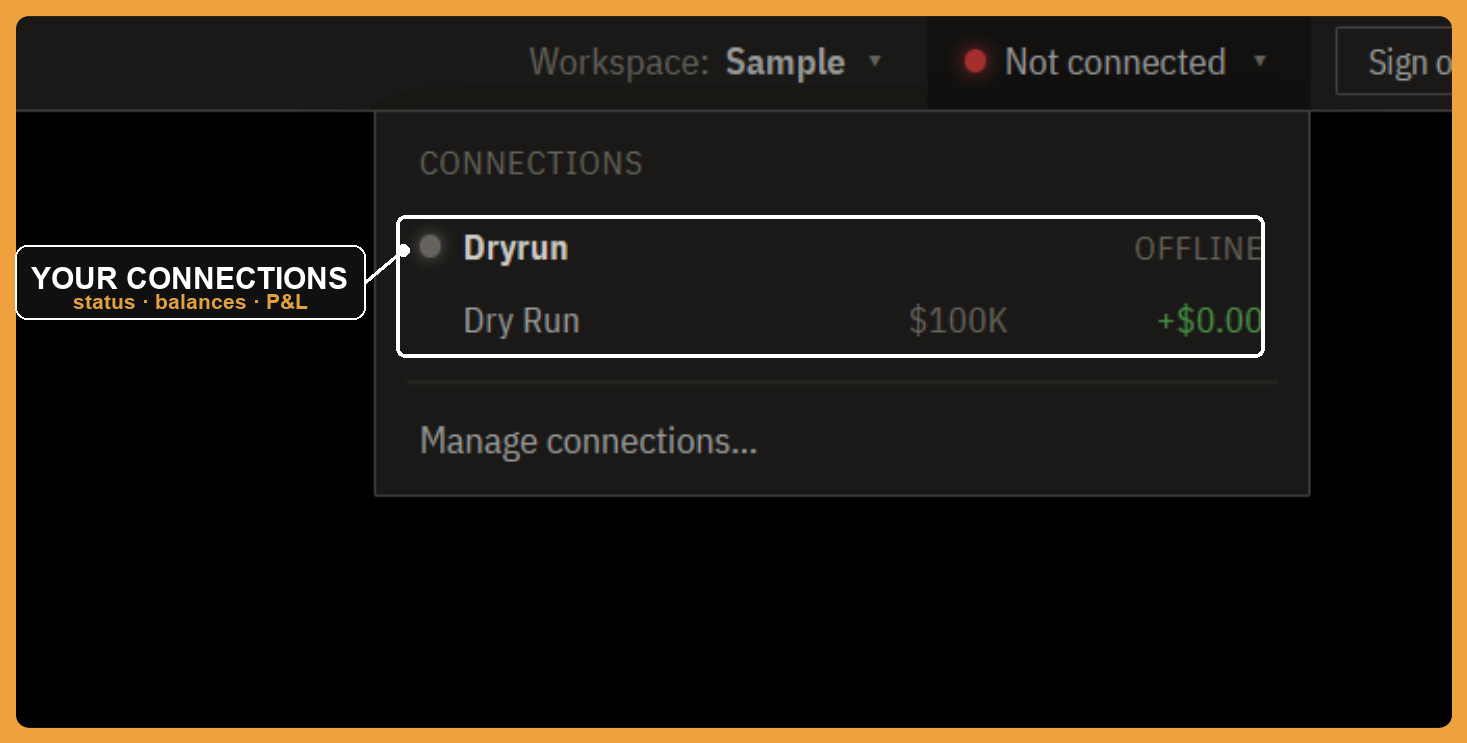
The connection status sits in the menu bar, next to your workspace. It shows whether you are connected to a broker and data, and clicking it opens the list. Dryrun is the built-in paper-trading connection, a practice account with a starting balance, so you can use the app before linking anything real; its row shows the account balance and the day's profit and loss. Manage connections is where you add or switch a broker or data feed. The colored dot is the quick read: at a glance you can tell whether you are live, on paper, or offline.
Linking panels by color
Panels can be linked so they follow the same symbol together. Put two or more of them in the same color group and one becomes the driver, the panel whose symbol the others track, while the rest follow, updating to the same name automatically. So a chart, a company profile, and an options chain can all track whatever you type in one place, instead of re-entering it in each. There are twelve link colors, enough to run several independent groups at once, one color following one name while another color follows a second. You set a panel's color group from the Color group control in its tab's right-click menu; leave it ungrouped and it simply stays on whatever you last gave it.
Where to go next
That is the whole shell. Open a panel with a code or the launcher, arrange the grid and lock it, save arrangements as tabs, group tabs into workspaces, pin favorites, and link panels by color. Every panel in The Terminal, from Rates to the options chain, lives inside this same frame, so once these moves are second nature the only thing left to learn is the panels themselves. The rest of this knowledge base covers them one at a time.