Research
SECSector & Industry Analysis
Where money is flowing, on one screen: a sector map, a rebased comparison, a rotation graph, a sortable members table, breadth, and seasonality, all drilling from sectors to industries to names.
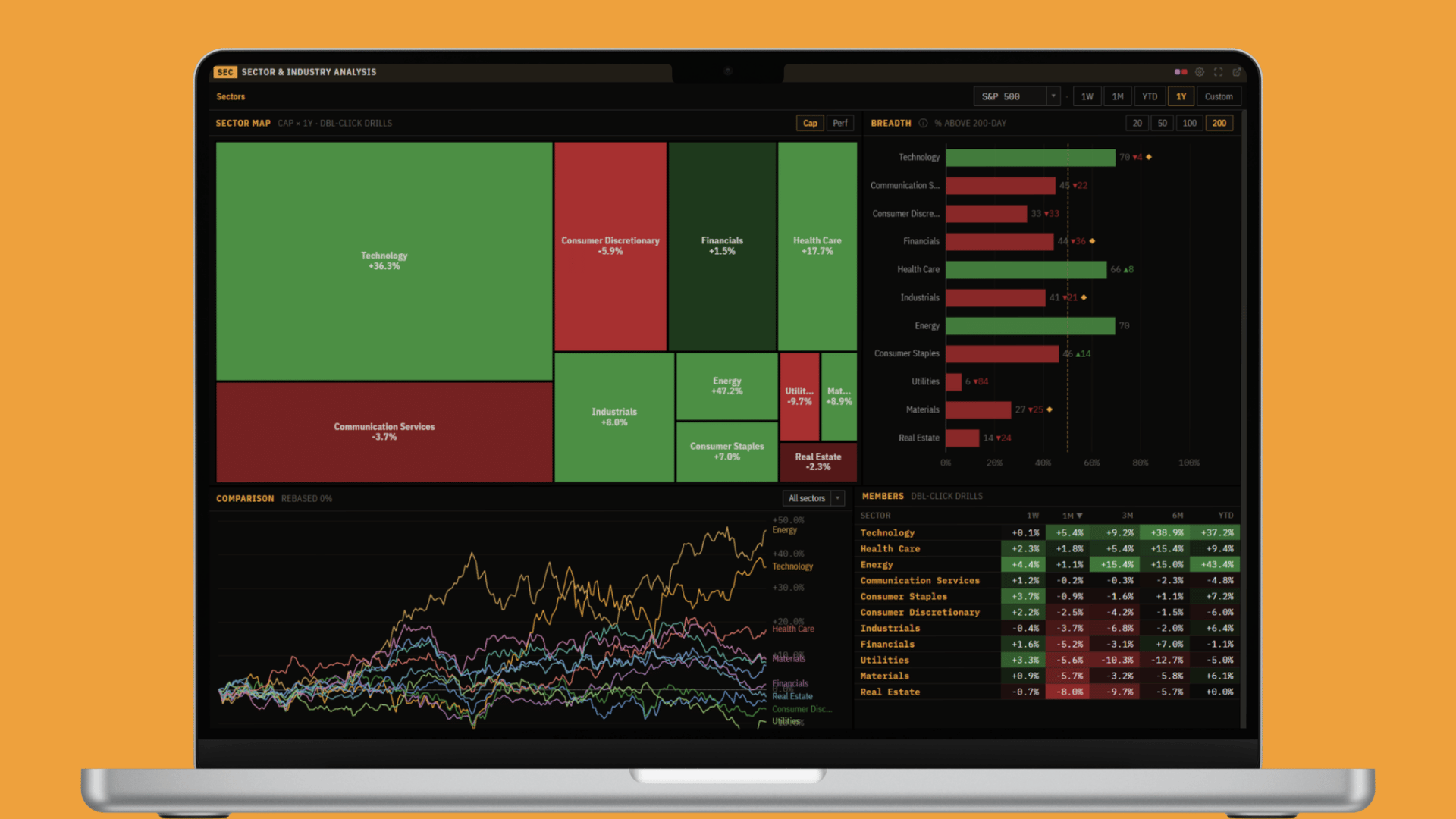
Markets move in rotations. Money leaves one part of the market and shows up in another, and the names that lead are usually the ones in the sector that is being bought. This panel is built to show that rotation at a glance: which sectors are winning and losing, how broad each move is, where each one sits in its cycle, and when the calendar tends to favor it. It is one screen for the top-down question every trader eventually asks, "where is the money going?", and it drills from the whole market down to a single sector's industries and names without ever leaving the window.
Why this panel exists
Reading sector rotation usually means stitching together a heatmap from one site, a relative-strength chart from another, a breadth gauge from a third, and a seasonality table from a fourth, each on its own index and timeframe. By the time you have them lined up the move has often already happened. This panel puts the whole top-down workflow in one place, on one universe and one timeframe, so you can start wide (the market by sector), find the sector that stands out, and drill straight into its industries and members to see what is actually driving it. Every chart re-scopes together as you drill, so you are always comparing like with like.
The panel and its filters
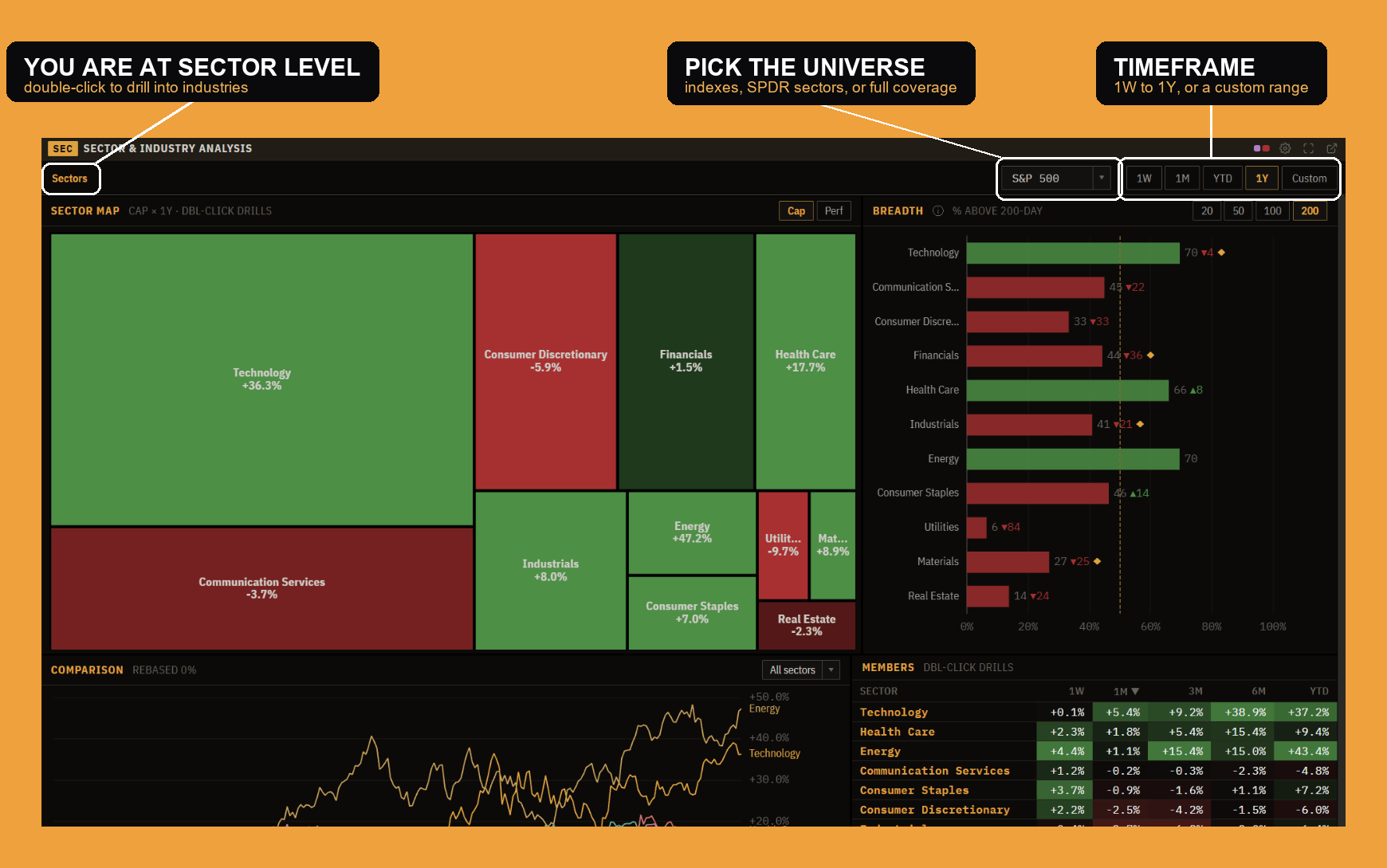
Everything on the screen is driven by the filter bar across the top:
- The universe sets what you are looking at: our full stock-coverage universe, a benchmark index (S&P 500, NASDAQ 100, Russell 2000), or the SPDR sector ETFs (XLE, XLF, XLK, and the rest). Every panel below redraws for whichever you pick.
- The timeframe (1W, 1M, YTD, 1Y, or a custom range) sets the window that the comparison is rebased to and the sector map is colored by.
- The level is the breadcrumb on the left. It reads Sectors at the top level; double-click a sector anywhere in the panel and it changes to that sector, now showing its industries, and again to show the names. The breadcrumb is how you see where you are and step back up.
Right-click the filter bar for the window options: open its settings, hide the window header, go full screen, or detach it into its own window on another monitor. The gear in the top-right opens the same settings.
The sector map
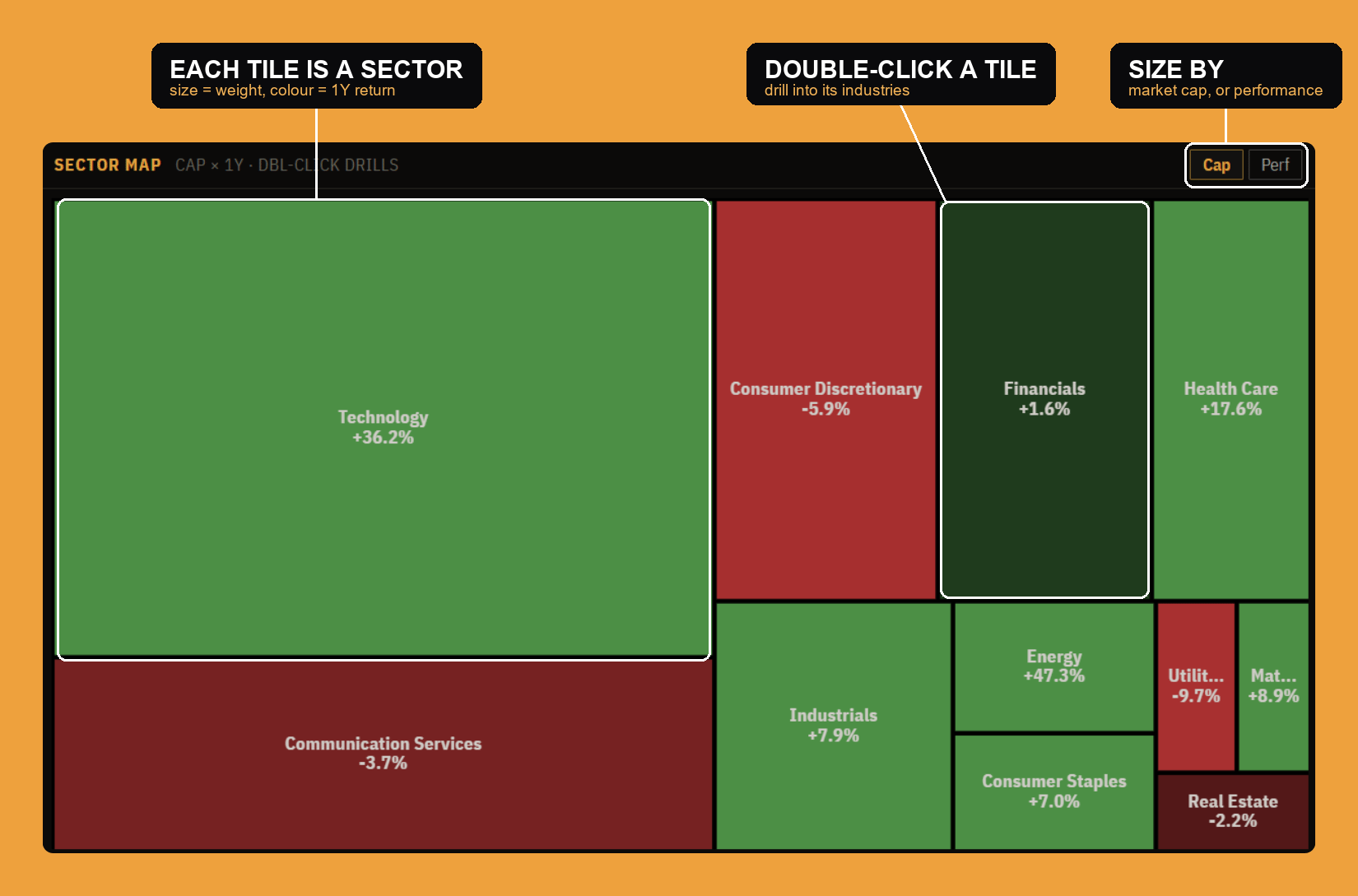
The map is the orientation view, a treemap where every tile is a sector. By default the size of a tile is the sector's market-cap weight (so Technology dominates), and the color is its return over the chosen timeframe: green for up, red for down, and the deeper the shade the bigger the move. A toggle switches the sizing to performance, which makes the biggest gainer the biggest tile. One glance tells you which sectors carry the most weight and which way they moved. Double-click any tile to drill into that sector's industries.
Comparison
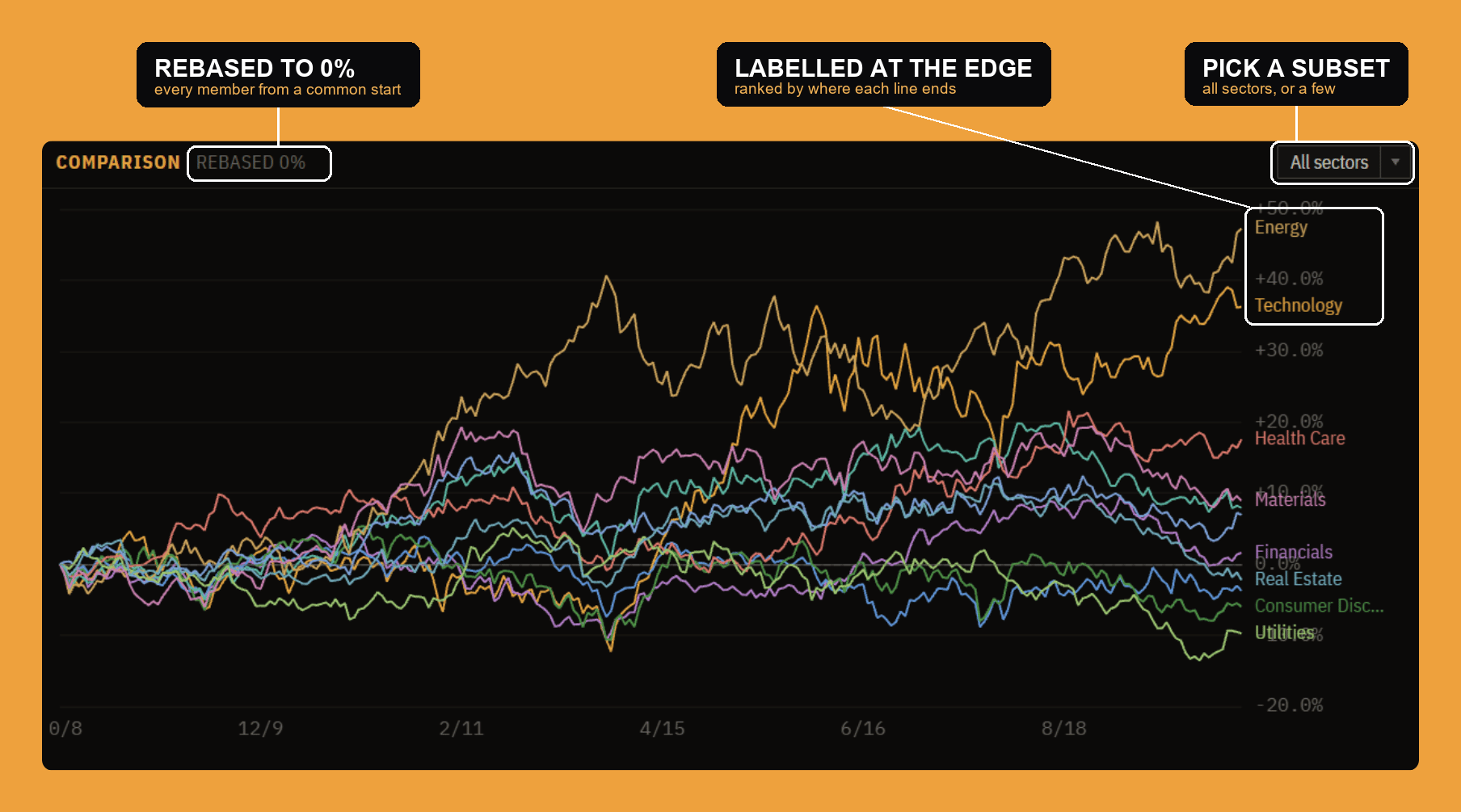
The comparison chart answers "who is actually leading?" It rebases every member to 0% at the start of the timeframe and plots them together, so the lines fan out by relative performance and the leaders and laggards separate cleanly. Each line is labelled at the right edge by where it ends up, so the ranking reads top to bottom. A selector lets you narrow from all sectors to a subset when the screen gets busy. This is the cleanest read on dispersion: not just that the market is up, but how far apart the winners and losers have pulled.
Rotation (RRG)
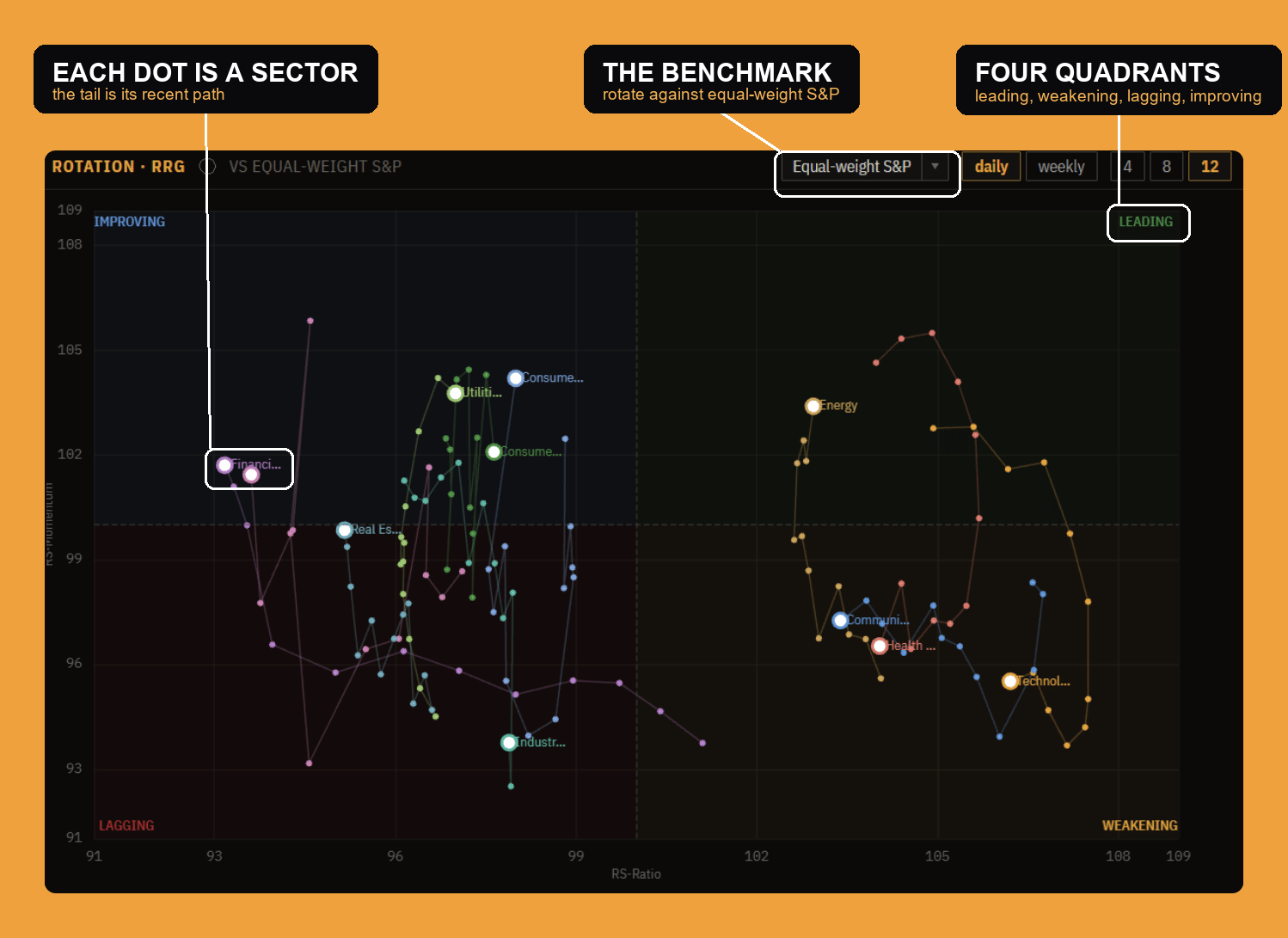
The Relative Rotation Graph plots each member against a benchmark (the equal-weight S&P at the top level, or the parent sector once you drill in) on two axes: relative strength across, relative momentum up. That splits the screen into four quadrants, and members rotate through them clockwise: Leading (strong and still gaining), Weakening (strong but losing momentum), Lagging (weak), and Improving (weak but turning up). Each dot carries a tail of the last several periods, so you see not just where a sector is but which way it is heading, the thing a static ranking cannot show. Tail length (4, 8, or 12 periods) and the daily or weekly cadence are yours to set.
Members
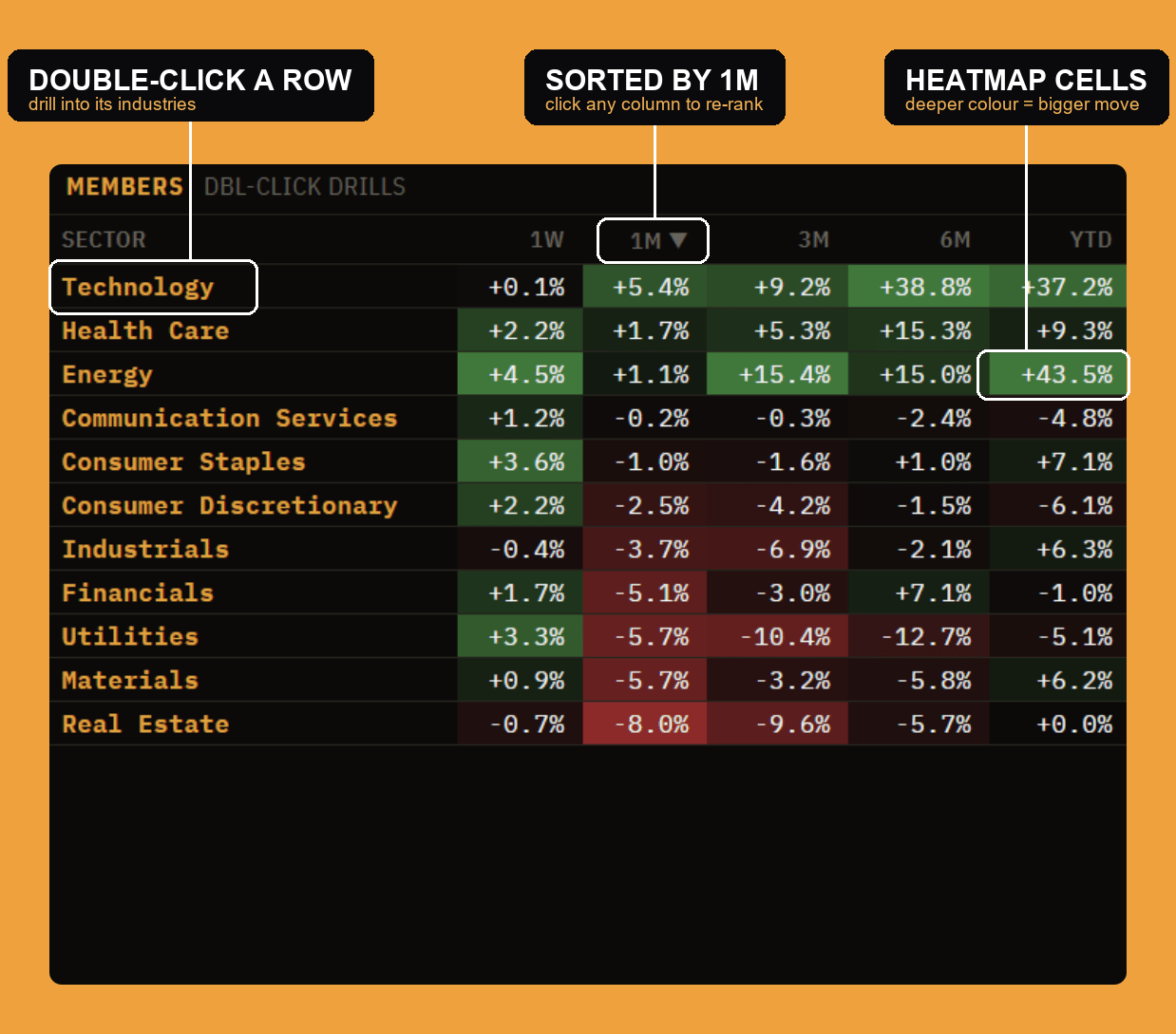
The members table is the numbers behind the pictures: every member of the current level with its returns across 1W, 1M, 3M, 6M, and YTD. Click any column to sort by it, so you can rank by the week or by the year with one click, and the cells are shaded as a heatmap (deeper color, bigger move) so the pattern reads before the numbers do. Double-click a row to drill into that sector's industries, the same move as double-clicking a tile. Whatever you drill into, the table always lists every name, while the charts above show a readable subset.
Breadth
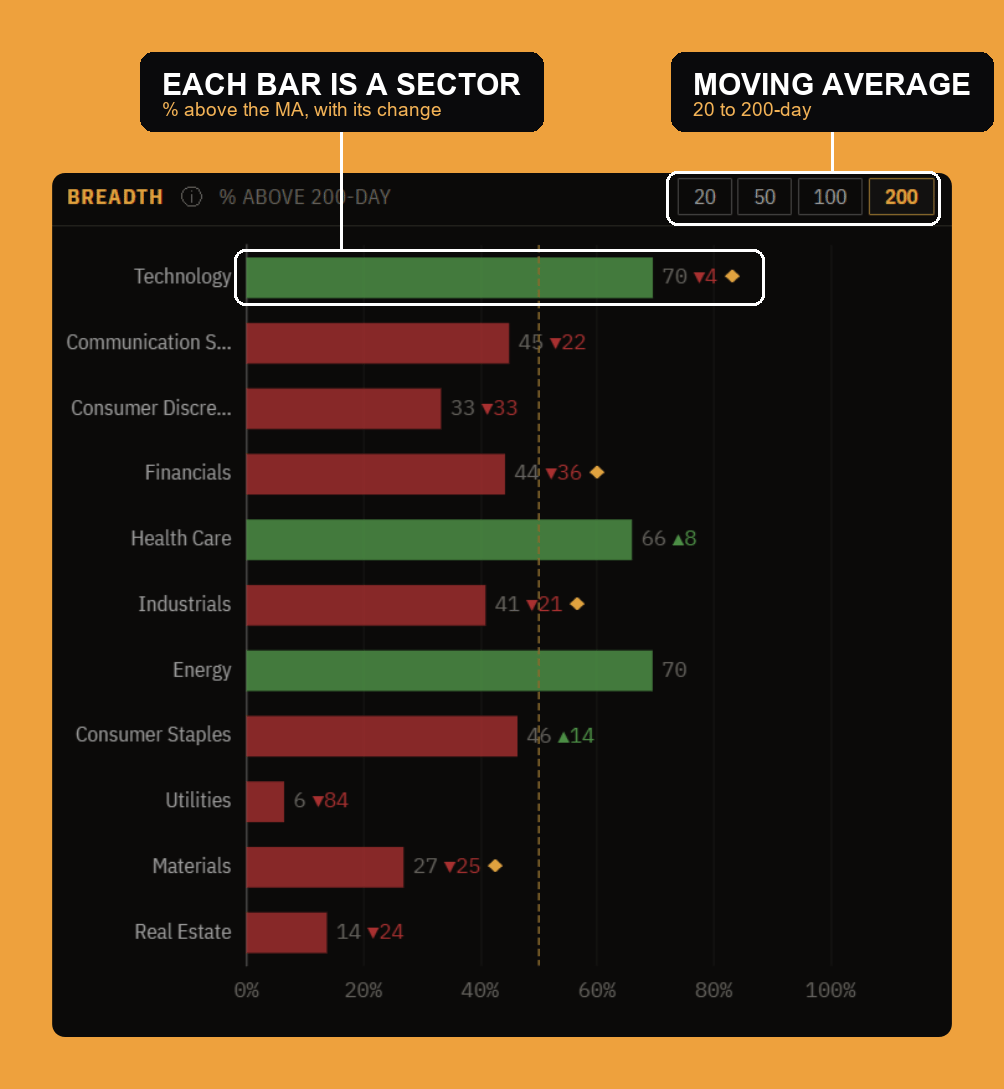
A sector can be green on the map because one giant member dragged it up, while most of its names are falling. Breadth is the check on that: for each sector it shows the percentage of members trading above a moving average (the 200-day by default, or the 20, 50, or 100-day), as one bar per sector, with the current level and its change versus the last reading. The dashed line marks 50%. A sector above the line is broadly healthy; one that is green on the map but low on breadth is being carried by a few names, which is a very different, and more fragile, kind of strength.
Seasonality
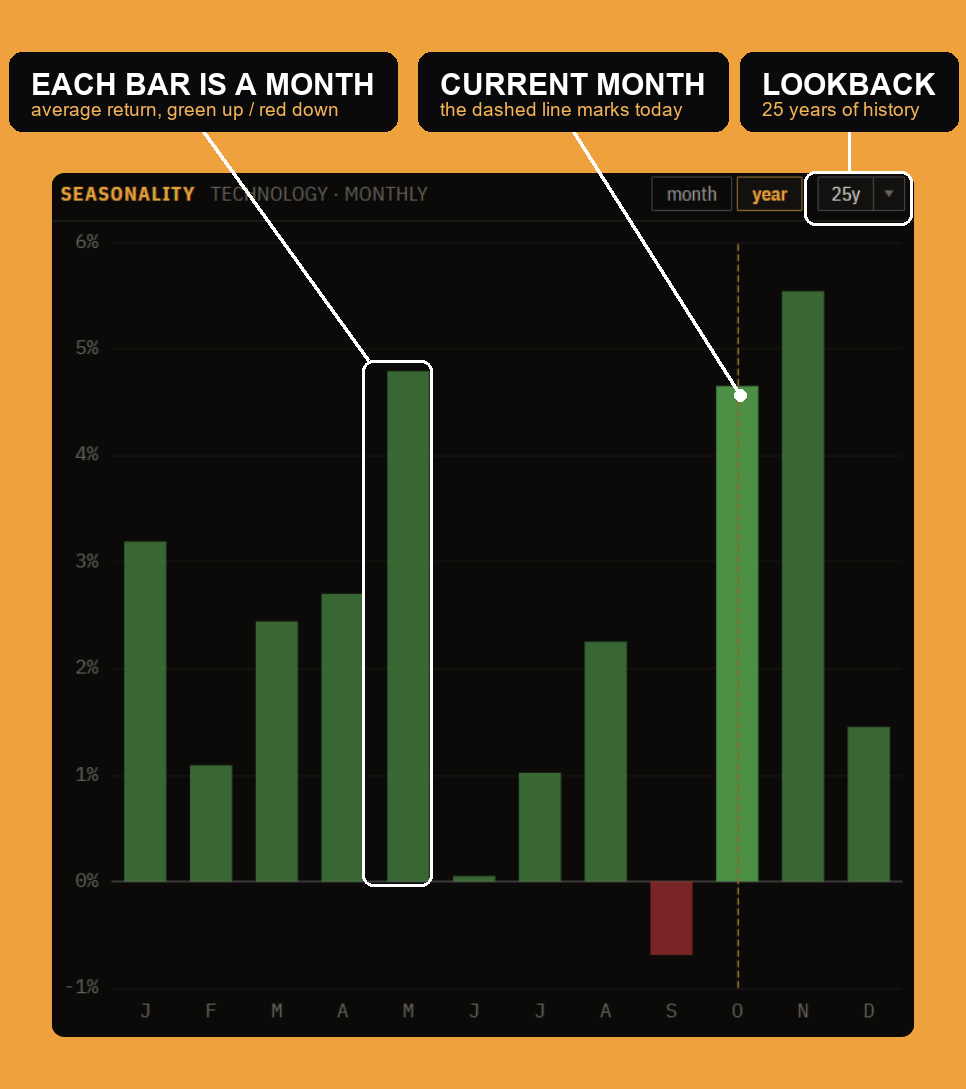
Seasonality is the calendar's version of the same question: for the current selection, what has each month done on average, over a long lookback (up to 25 years, back to the 1990s). Green bars are months that tend to be positive, red bars negative, and a dashed line marks the current month so you can see what the season typically favors from here. It is context, not a signal, the historical tendency that sits behind a trade, and like everything else it re-scopes as you drill from a sector into its industries.
Drilling from sectors to names
The whole panel is a drill-down. At the top you are looking at the market by sector. Double-click a sector, either its tile on the map or its row in the members table, and every panel re-scopes to that sector's industries: the map now tiles the industries, the comparison and RRG compare them, breadth and seasonality recompute for them, and the RRG benchmark switches to the parent sector so the rotation is measured against the right thing. Double-click again to reach the individual names. The breadcrumb in the filter bar tracks where you are and clicks back up a level. It is the same three charts and one table the whole way down, so the skill you learn at the sector level is exactly the skill you use on an industry or a single name.
Settings
Each panel has its own settings, reached from the gear in the top-right (or by right-clicking the filter bar). They open as a list, one section per panel, so you tune each piece without leaving the window.
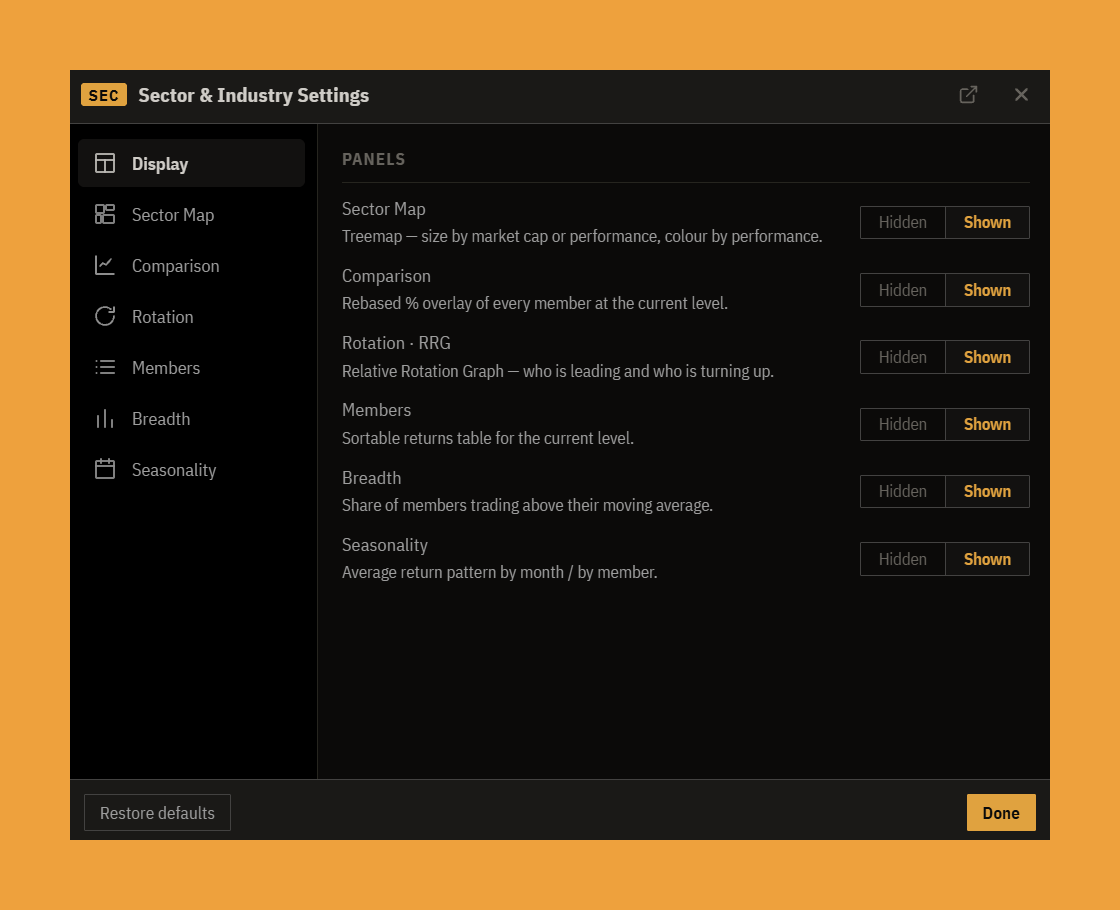
- Display is the show/hide list: turn any of the six panels (sector map, comparison, rotation, members, breadth, seasonality) on or off to give the ones you use more room.
- Sector Map sets whether tiles are sized by market cap or by performance (color is always the return).
- Comparison & Map sets the timeframe (the same one in the window header), and an industry breakdown control: when a drilled-in sector has many industries, the charts can show the leaders and laggards, the largest, or all of them, with a cap on how many per side, so they stay readable while the members table still lists everything.
- Rotation sets the benchmark to rotate against, the tail length (4, 8, or 12 periods), and the daily or weekly cadence.
- Members chooses which return columns show, whether cells are plain text or a heatmap, and lets you add a custom column for any trailing period you want.
- Breadth picks the moving average (20, 50, 100, or 200-day) that the bars measure against.
- Seasonality sets the lookback, the number of years feeding the monthly averages (capped by available history).
Each section also carries its own text size, on top of the app-wide setting, so you can make one panel larger without touching the rest.
The bottom line
Sector & Industry Analysis is the top-down read in one place: the map shows you where the weight and the moves are, the comparison ranks the leaders, the RRG shows which way they are rotating, the members table puts numbers on it, breadth tells you how broad each move really is, and seasonality adds the calendar's tendency. Start wide, find the sector that stands out, and drill straight into its industries and names, with every chart moving together so you are always comparing like with like.