Getting started
Global settings
The control room: theme and text size, where your market data comes from, which broker connections are live, what alerts fire, your commission rates, and how your workspaces and tabs are organized.
Global settings is where you set the terminal up to be yours. You open it from the File menu (File → Settings), and it is the one panel that governs all the others: how the app looks, where every kind of market data comes from, which broker and data connections are live, what makes a sound when it happens, what you pay per trade, and how your windows, workspaces, and tabs are arranged. You will spend a few minutes here when you first sign in, then come back only when something changes.
Why this panel exists
A trading workstation has a lot of moving parts, and almost all of them are personal: your monitors, your broker, your data entitlements, your commission schedule, your alert preferences. Scattering those controls across menus would mean hunting for them. Instead they live in one place, grouped by job, behind a single left-hand sidebar. Open Settings, pick a section, change the thing, and it takes effect, usually immediately, occasionally on the next app start (the panel always tells you which).
Two principles run through the whole panel. Your preferences are stored on your device and synced across every open window, so changing the theme in one window changes it everywhere at once. Your keys are never typed into this panel. You add a broker or data key from the website, it is encrypted and stored in our database, and it syncs down to this device when you sign in. The Settings panel shows you the status of a connection, never a place to paste a key.
The Settings window
Every section is reached from the icon sidebar on the left: Appearance, Ticker Tape, Market Data, Integrations, Alerts, Commissions, Workspaces, and Tabs. The content pane on the right scrolls. The panel can sit docked inside the app as a floating overlay, or you can detach it into its own operating-system window and drag it to another monitor; it is the exact same shell either way, so nothing moves around when you pop it out.
Appearance
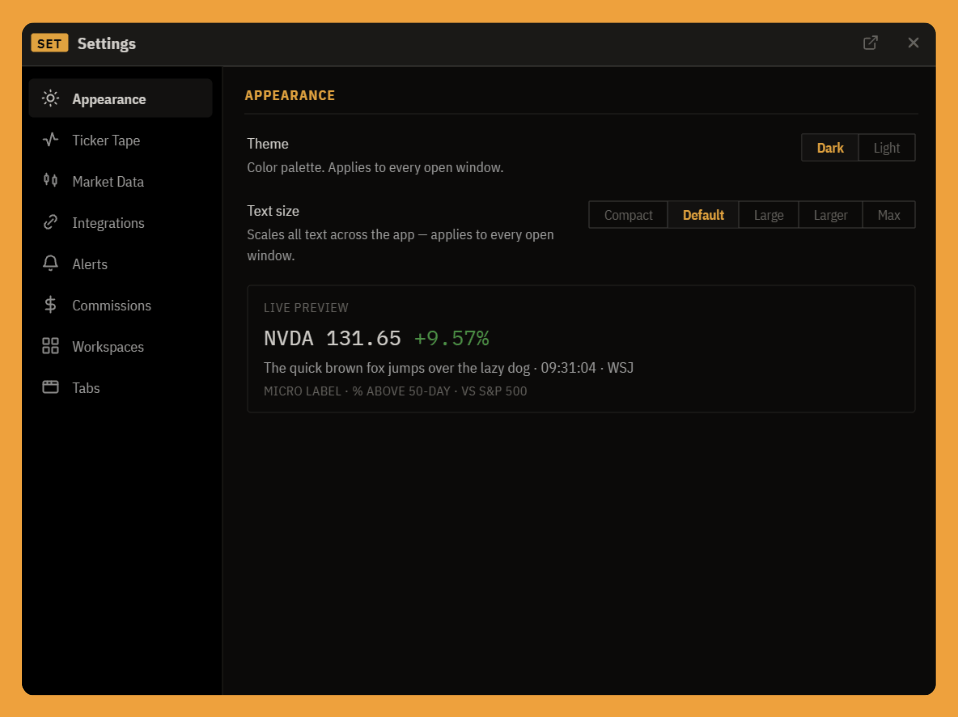
The two choices here apply to every open window at once, immediately:
- Theme is Dark or Light. The whole app, including detached windows and charts, repaints to the chosen palette. Both themes are designed as equals, so neither one looks like an afterthought.
- Text size scales all text across the app, in five steps: Compact (0.9x), Default (1x), Large (1.12x), Larger (1.25x), and Max (1.4x). It is a single global zoom, so a dense desk of panels stays aligned as it grows; useful for a far-away monitor or simply for legibility.
The live preview underneath shows a sample quote, a headline line, and a micro-label, all redrawing as you change the theme or size, so you can judge the result before you leave the tab.
Ticker Tape
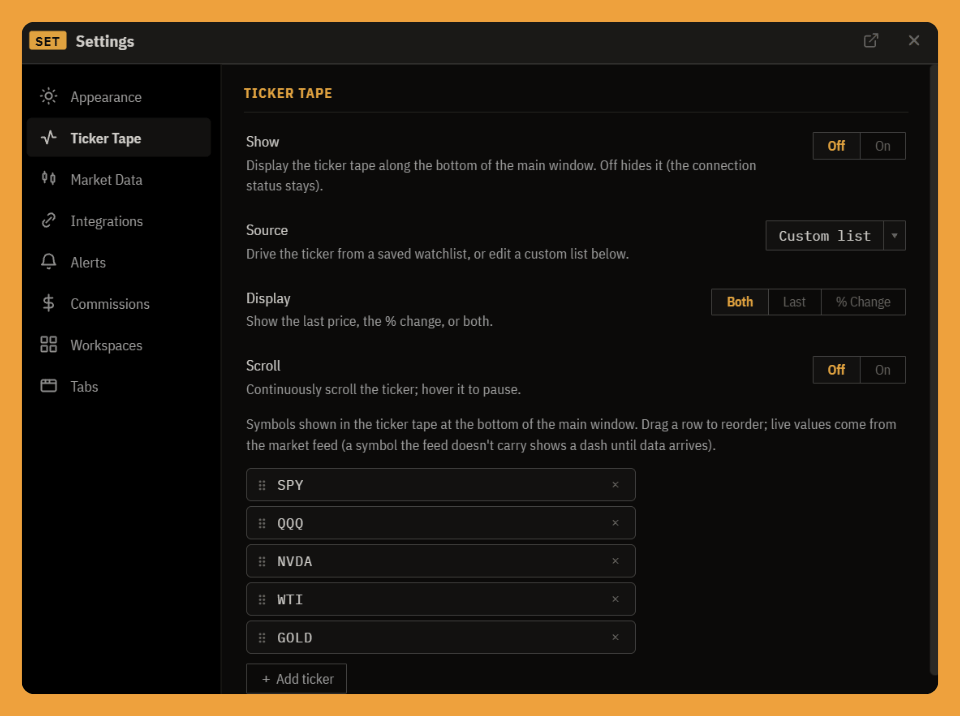
The ticker tape is the scrolling strip of symbols along the bottom of the main window. This tab controls it:
- Show turns the tape on or off. Off hides the strip (your connection status stays where it is).
- Source drives the tape from one of your saved watchlists, or from a custom list you edit right here.
- Display shows the Last price, the % Change, or Both.
- Scroll turns the continuous scroll on or off; hover the tape to pause it.
On a custom list, drag a row to reorder it, add symbols with the search field, and remove one with the ×. Live values come from the market feed, so a symbol the feed does not carry shows a dash until data arrives.
Market Data
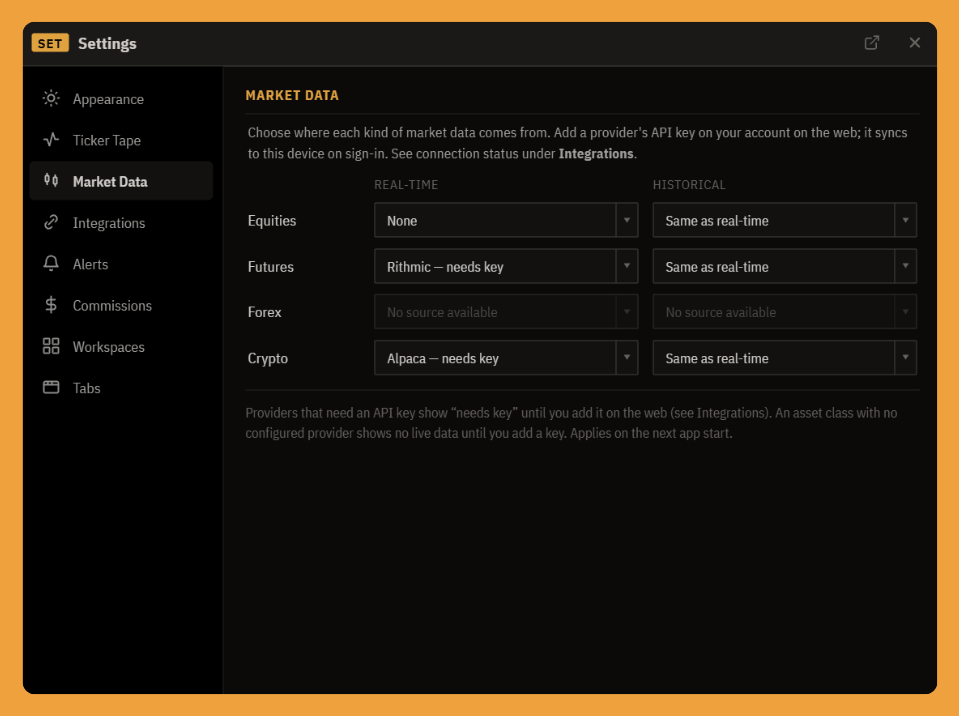
This is where you choose where each kind of market data comes from. Each asset class, Equities, Futures, Forex, and Crypto, gets two dropdowns:
- Real-time is the live-quote source for that class.
- Historical is the source for charts and history. It defaults to Same as real-time, so you only set it when you want bars from a different provider than your live quotes.
The options come from the provider registry. A provider that needs an API key reads "needs key" until you add that key (see Integrations), and a provider that is still planned is shown but disabled. An asset class the terminal has no provider for yet reads "No source available" so the dropdown is clearly, intentionally empty rather than blank. Routing is saved to your device; a change here applies on the next app start.
Coming soon: Live broker and data-provider connectivity is still in development. The providers appear here so your routing is ready, but connecting one, and the live data that follows, is not switched on yet.
Integrations
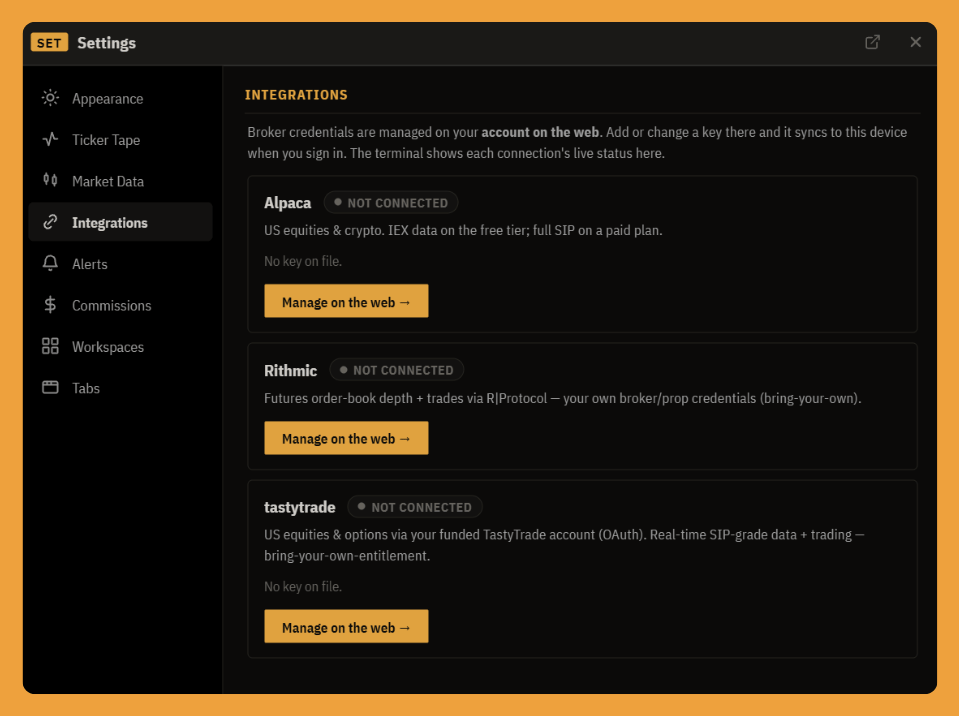
Integrations is the status board for your broker and data connections, one card per provider: Alpaca (US equities and crypto), Rithmic (futures order-book depth and trades, bring-your-own credentials), and tastytrade (US equities and options through your funded account). Each card explains what the provider carries, shows whether a key is on file and the live connection state, and links you out with a Manage on the web button.
The principle to understand: you do not enter credentials here. You add a broker or data key on the website with the Manage on the web button, it is encrypted and stored in our database, and it syncs down to this device when you sign in. This panel reads your connection status and links you out to change it; it never takes a key itself.
Coming soon: Live broker connectivity is still in development. The providers are listed and the plumbing is in place, but connecting an account is not switched on yet, so every card reads Not connected for now.
Alerts
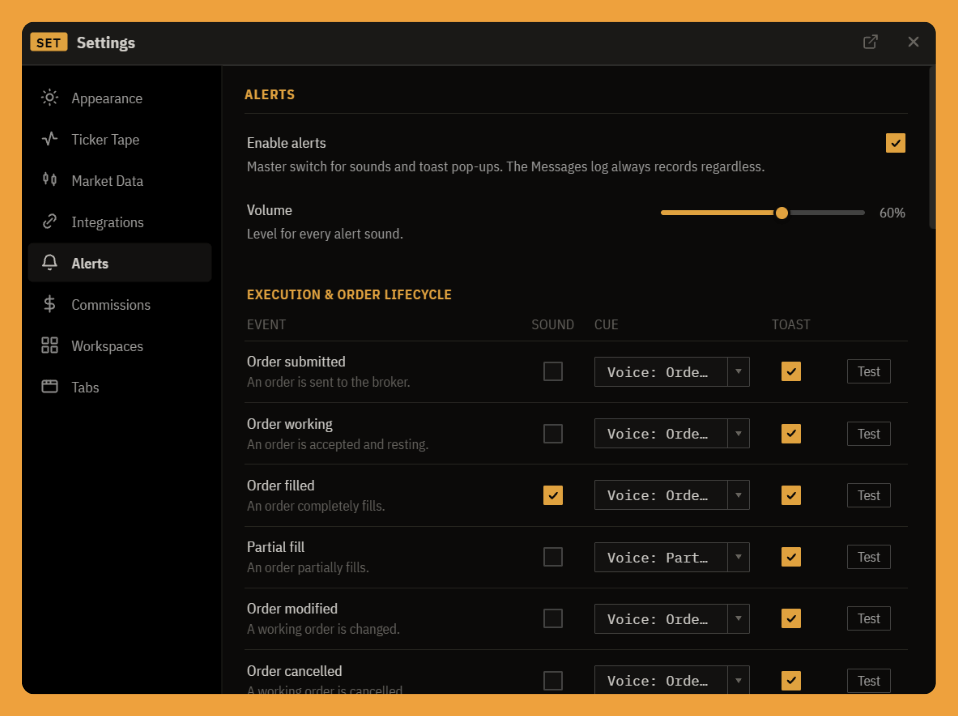
Alerts decides what the terminal does when something happens. At the top is a master enable and a volume slider. Below is a table of events grouped by kind, execution, positions, risk controls, connections, and price alerts. For each event you get:
- Sound on or off,
- a cue picker: bundled voice and notification sounds, synth cues, and any sound you import, with an "Add your own" option at the end (imported files up to 1 MB, stored on the device and synced across windows),
- a Toast on or off (the on-screen pop-up), and
- a Test button to hear and see the alert immediately.
Events whose underlying feature has not shipped yet are still configurable here; they simply start firing once that feature is live, with your preferences already set.
Commissions
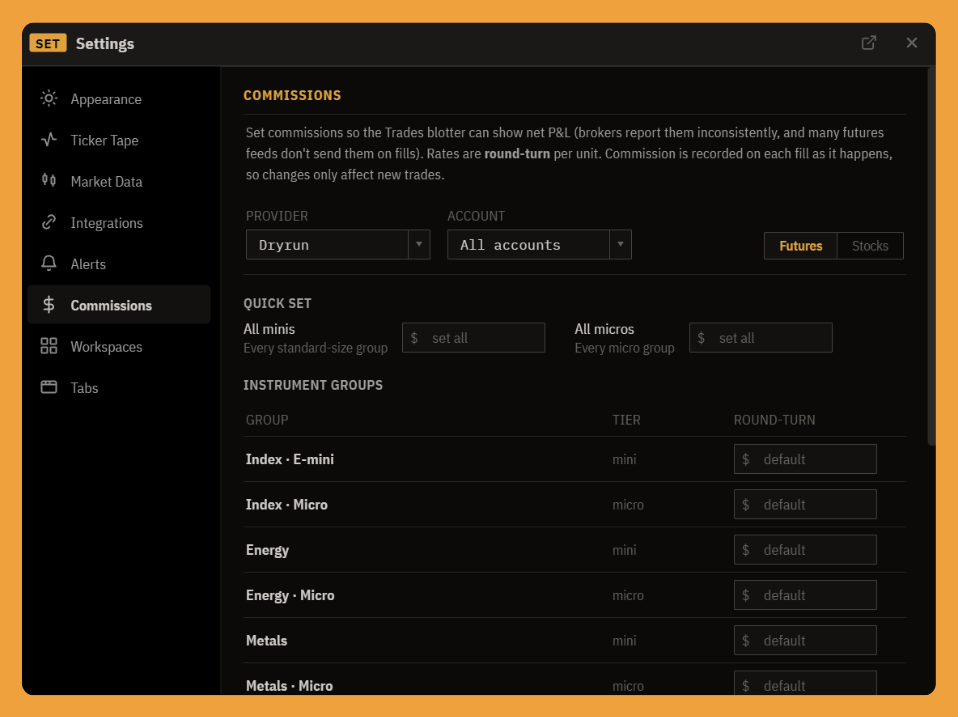
So your P&L is honest, the terminal needs to know what you actually pay. Commissions are broker-agnostic and scoped by provider and account (or "all accounts"), with a Futures / Stocks toggle:
- Futures lets you bulk-set all minis and all micros at once, then refine by instrument group, then override individual symbols.
- Stocks takes a per-share default with per-symbol overrides.
Rates are entered as round-turn per unit. Critically, commission is frozen onto each fill at the moment it executes, so editing a rate here only affects new trades; your historical blotter and realized P&L never shift under you.
Note: Commissions matter most once you are trading through a connected broker, which is still in development. You can set your schedule now so net P&L is right the moment broker connectivity ships.
Workspaces
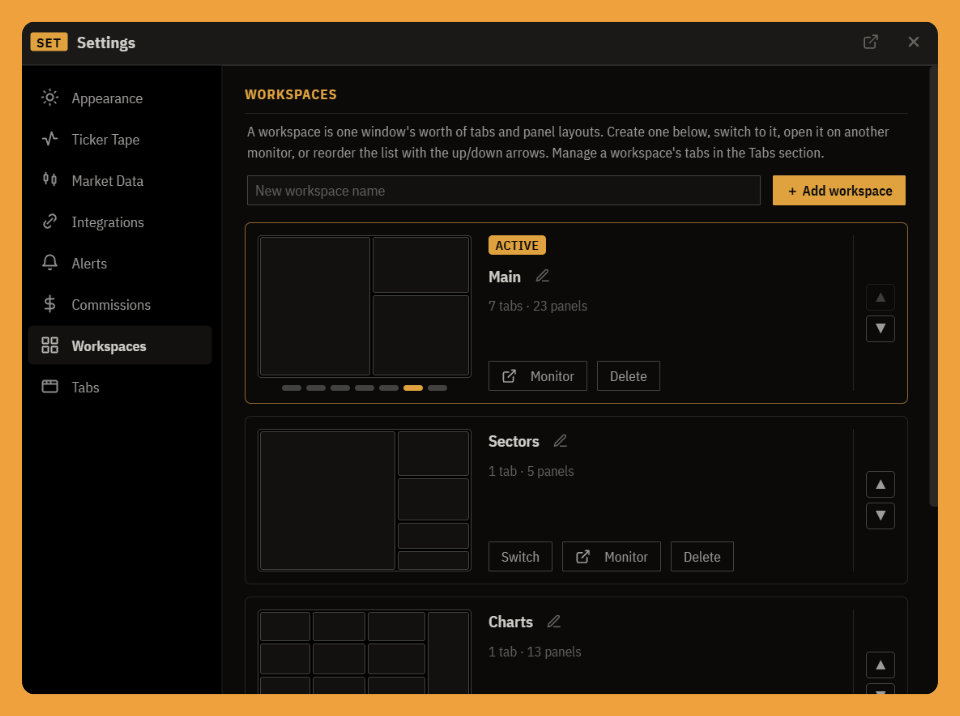
A workspace is one window's worth of tabs and panel layouts, the terminal's unit of "a screen set up for a job" (a scalping layout, a research layout, an options layout). This tab manages them:
- Create a workspace with the field at the top.
- Switch to one, or open it on another monitor in its own window.
- Reorder the list with the up and down arrows.
Each workspace is a card with a schematic mini-map of its layout and a small tab switcher to preview each of its tabs. The tabs inside a workspace are managed in the next section.
Tabs
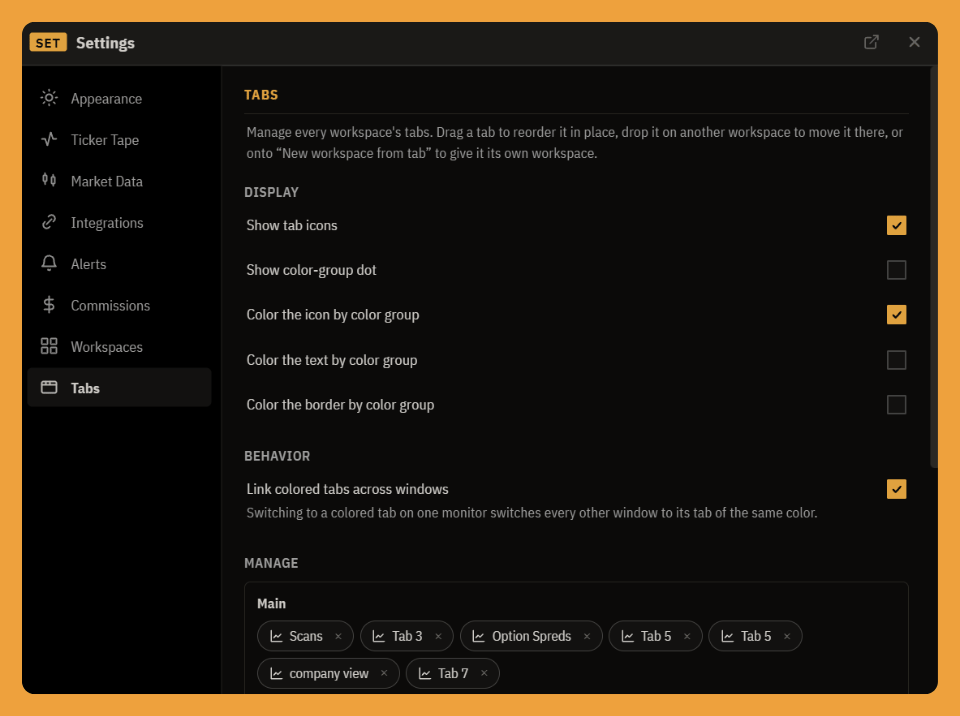
Tabs manages every workspace's tabs from one place. Each workspace is a card, and its tabs appear as pill badges, a mirror of the condensed tab strip along the bottom of the app. From here you can:
- Drag a badge within its workspace to reorder it (the others shift live as you drag),
- drop it on another workspace card to move it there, or
- drop it on "New workspace from tab" to promote it into a workspace of its own.
Double-click a badge to rename it; the × deletes it (with a confirmation), and archived tabs can be restored. The badges honor your footer tab-strip display preferences, showing the icon, a color dot, and whether color is applied to the icon, text, or border, so each badge previews exactly how the real tab will look.
The bottom line
Settings is laid out the way you set a desk up: appearance first (how it looks), data and connections in the middle (where the numbers come from and whether they are flowing), commissions so the money math is right, and workspaces and tabs to organize the screens. Set it once and it follows you across every window and monitor, while your keys and credentials stay on your account, never on the panel.